GOOGLE SHEETS

Connect Google Sheets to the workflows around it

Henswick reads from, writes to, and acts on the spreadsheets your team already relies on — connecting the rows and updates in Google Sheets to the business applications, browser tools, and downstream systems that complete the work.

Discuss your Google Sheets integration

What can be connected

GOOGLE SHEETS SIGNALS
Row added or updated
Status column changes (e.g., marked ‘Ready’ or ‘Approved’)
New form submission populates a row
Queue item marked for processing
Sheet or tab shared for handoff
HENSWICK LOGIC
Map data Apply rules Validate Route Hold exception
BUSINESS OUTCOMES
✓Create or update a record in a business application
✓Submit or complete an action in a browser-based tool
✓Write the result or reference number back to the sheet
✓Reconcile spreadsheet data against the system of record
✓Route an exception for review

Illustrative — the exact triggers and actions depend on how your Google Sheets workflow is set up.

Example workflows

CRM → HENSWICK → GOOGLE SHEETS → ERP

Sales-to-finance handoff

Move an approved deal from the CRM into the operational sheet finance relies on, then complete the matching entry in the accounting system.

  1. A deal is marked approved in the CRM
  2. Henswick writes the deal details into the operational sheet finance already tracks
  3. Henswick enters the corresponding transaction in the ERP or accounting system
  4. The row is updated with a status and reference number
Build this workflow →
BROWSER PORTAL → HENSWICK → GOOGLE SHEETS → SERVICE DESK

Portal intake to service operations

Collect requests from a browser-based portal, log them for operational visibility, and open the matching service ticket.

  1. A request is submitted through a browser portal with no export or API access
  2. Henswick records the request in the operations sheet your team monitors
  3. Henswick opens or updates the corresponding ticket in your service or ticketing platform
  4. Status stays in sync as the ticket moves forward
Discuss this integration →
GOOGLE SHEETS → HENSWICK → BUSINESS APP → DOWNSTREAM SYSTEM

Spreadsheet-driven operational queue

Turn a status column into a working queue — Henswick completes the action and reports back.

  1. A row is marked ready for processing in Google Sheets
  2. Henswick completes the required action in the business application
  3. Henswick passes the result to the downstream system
  4. The final status and reference are written back to the row
Build this workflow →

Need to connect Google Sheets with something else?

Henswick builds integrations beyond what's listed here — for any system already in your stack.

Talk to us about your systems →
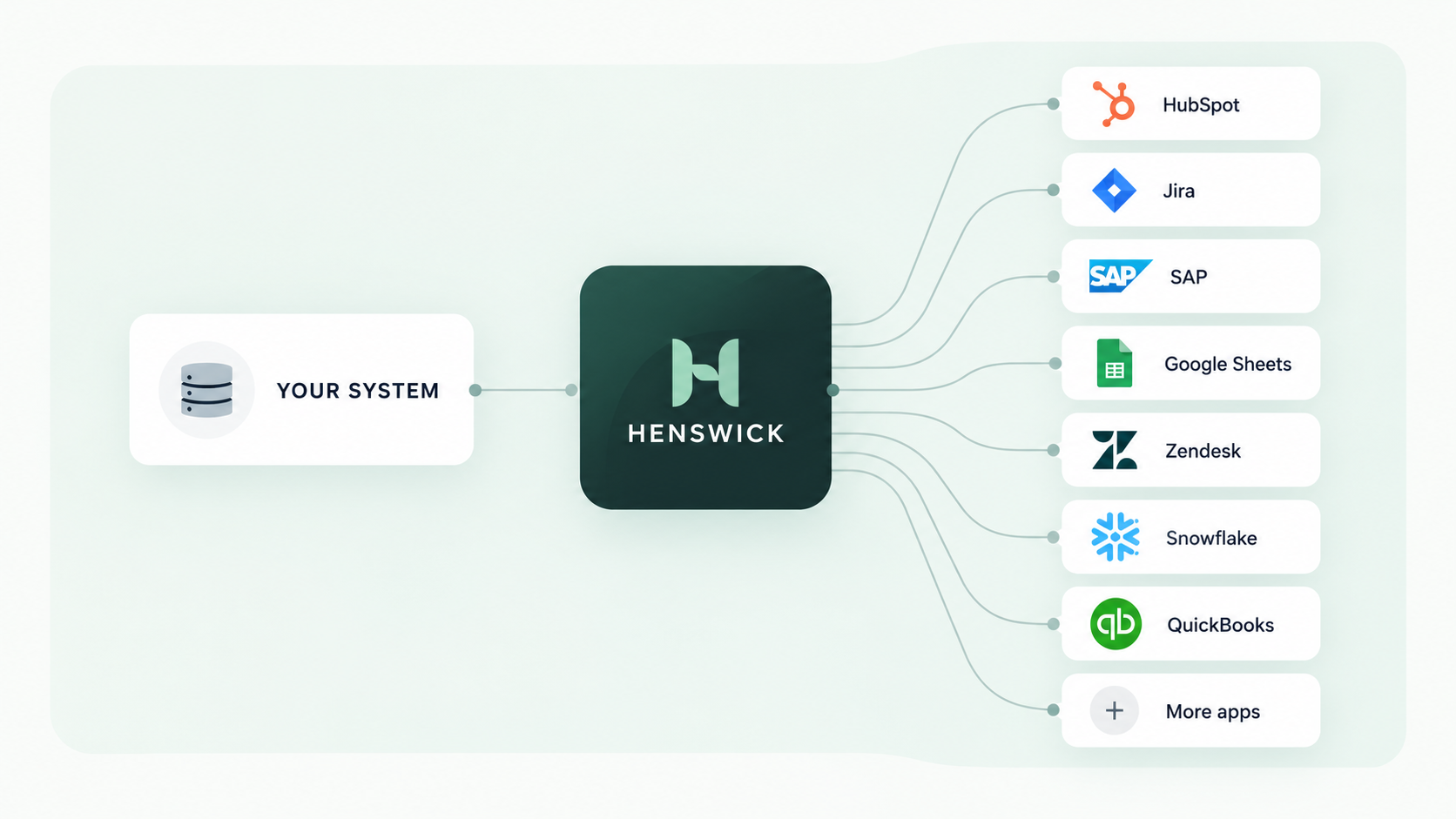
Your system connects through Henswick to HubSpot, Jira, SAP, Google Sheets, Zendesk, Snowflake, QuickBooks and more apps

Google Sheets connects with the systems you already run

SAP SAP
NetSuite NetSuite
ServiceNow ServiceNow
Jira Jira
Slack Slack
Google Sheets Google Sheets
QuickBooks Online QuickBooks Online
Microsoft Teams Microsoft Teams

Have a spreadsheet-driven workflow that still depends on manual work?

Discuss your integration

Product names and trademarks belong to their respective owners. Henswick is not affiliated with or endorsed by the companies referenced on this page unless explicitly stated.